
Project Zomboid

Project Zomboid

Not enough ratings
B42 Deticated server setup for friends
By TOYSGUNNER
Want to try the new Build 42 unstable multiplayer with friends but dont know how to set up a deticated server?
This guide will push you in the right direction so you yourself and your friends can enjoy the buggy experience together
2
   
Award
Favorite
Favorited
Unfavorite
Step 1 - SteamCMD download
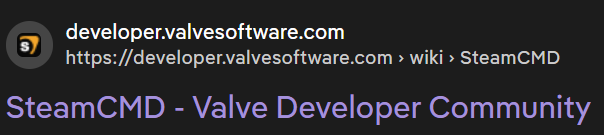
1. In order to get all the correct files via steam you need a (safe) '3rd party' program called SteamCMD which needs to be downloaded via the web:


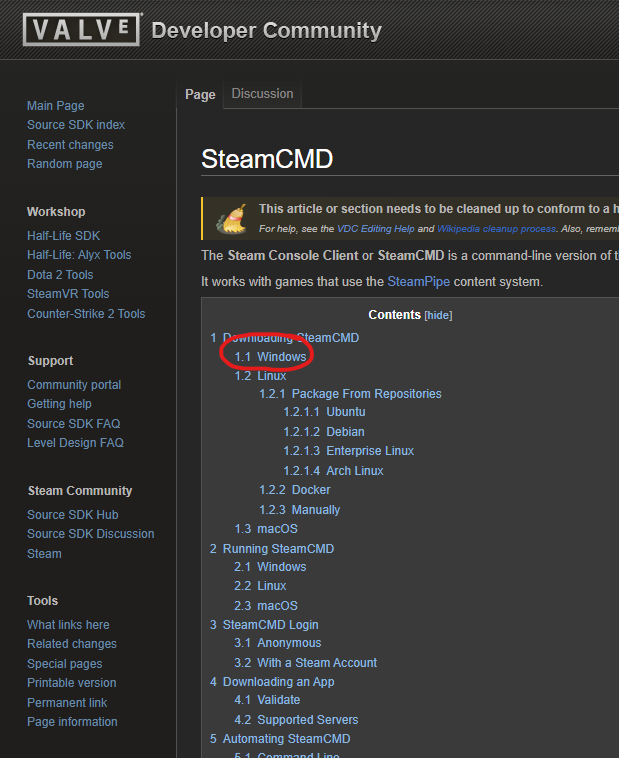
2.This will open up a site with a large menu, but we are here for the '1.1 Windows' version:


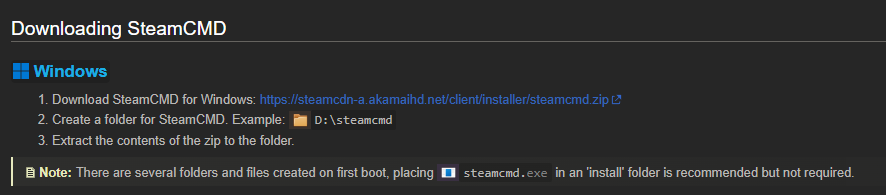
3.Then click on the blue https link which will download the latest version of SteamCMD for you:


Step 2 - SteamCMD Setup
1.Once SteamCMD is downloaded you'll get a zip file you need to extract.
I highly recommend extracting this file in your C:\ drive at the very root below such files as,
'Program Files x86', 'Users', 'Windows'

2.Now open up this extracted zip file and click on steamcmd.exe.
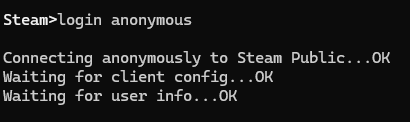
This should open up a command prompt, here you will type the following: login anonymous.


3.Now for one of the most important parts type the following exactly as written: app_update 380870 -beta unstable - unstable validate


4.You should see the console printing a few messages which could take a while for it to have done its thing.
However when the console is done go to the following newly created files for the next step:
C:\SteamCMD\steamapps\common\Project Zomboid Dedicated Server
if you didnt save it in your C drive just look for SteamCMD>steamapps>common
Just leave this folder open you'll need it later
(Due note that the application steam itself has the exact same file structure such as steamapps>common>zomboid, but we WONT be working in this Steam application file but SteamCMD itself)
Step 3 - Port Forwarding
This is probably the part where most will have a difficult time because examples would show private data of mine and everyone elses internet provider uses a different interface (you'll soon see what i'm talking about).

1.Open any browser and type your local ip adress.
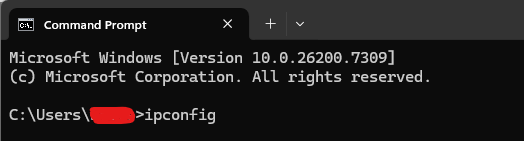
Dont know what that is? press the 'Windows' key on your keyboard and type 'cmd'.
This should open up a console similar to what you've seen in the previous steps.
In this console you'd want to type 'ipconfig'


Ignore all the difficult text except for 2 important lines: 'IPv4 Address' and 'Default Gateway'
For the step you are on we are after the 'Default Gateway' which should look something like 192.168.xxx.1
(make sure to write down your 'IPv4 Address' somewhere you'll need this later)
Anyway now that you have your 'Default Gateway' type that number in your browser:


2.Login to your modem/router, dont know the password? physically look around your house for the modem.
At the bottom of every modem there should be a white paper with the 'modem password' (not wifi password).
Thats the password you're after to login into your router via your browser

3.Now that you have logged in this is where it starts to get tricky because as I said at the top, this part is different for everyone.
But now that you see your modem setting look for the securety tab.
This security tab should have a 'Port-Forwarding' section.
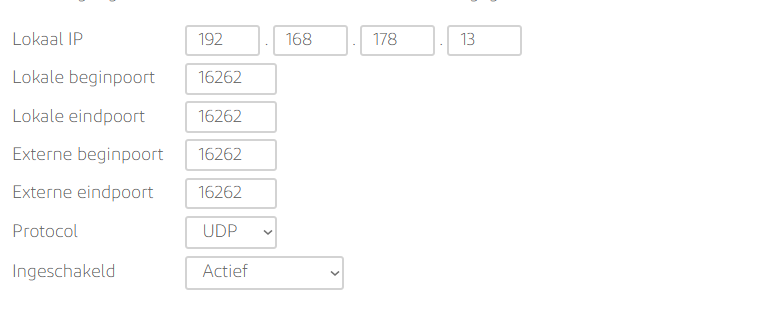
I hope my example shoud bring you in the right direction, but you want to port-forward 16261 and 16262 both UDP.
(your local(lokaal) ip should be the IPv4 Address you've written down)
Step 4 - Booting the server
You've made it past the hardest parts, however this is also the part that gets the most unresolved bugs. If you've done the past few steps correctly you should be perfectly fine.

1.Go back to your SteamCMD\steamapps\common\Project Zomboid Dedicated Server

2.Open the StartServer64.bat file

3.This should open up a console that will start going wild with text, this is your server booting up.
(if this part doesn't work you must delete the 'Project Zomboid Dedicated' file in SteamCMD\steamapps\common\Project Zomboid Dedicated and make sure you've done Step 1 correctly)

4.Once the console has stopped going wild it should say something like
'SERVER STARTED' and 'Steam is enabled':


5.You should now close the server and continue to the next step 'Step 5'
Step 5 - Customising your server
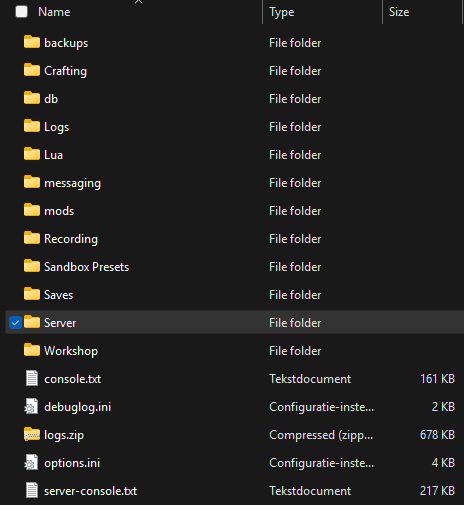
1.After opening the StartServer64.bat file in SteamCMD\steamapps\common\Project Zomboid Dedicated Server, there should be a newly create file in C:\Users\windowsusername\Zomboid.
This file location is the same for everyone else so try to find it.

This 'Zomboid' file contends should look something like:


2.Open up the 'Server' folder. this will have a few auto generated .ini and .lua files inside of them

3.Change your server properties (in my case servertest.ini)
These files can be opened/edited using notepad.
Look for items such as 'PublicName=' to change server name or Public=false to Public=true so your server show up in the public serverpage (NOT recommended)
within this file you can also add mods for your server using 'Mods=\modname1;\modname2;' and 'WorkshopItems=modnumber1;modnumber2;'

4.Change your sandbox settings (in my case servertest_SandboxVars.lua)
Here you can change things like Zombie speed or Item spawn rate
Step 6 - Joining the deticated server
1. In your steam library rightclick zomboid, go to propperties, then beta's, then select the unstable - unstable version.

2.Open up zomboid and navigate to the multiplayer tab

3.For you as host to join, add a new server within the multiplayer tab.
server name = the servername you've put inside the .ini file
server ip = your local IPv4 Address
server password = the password you've put inside the .ini file (can be empty)
server port = 16261

4.For your friend to join.
server name = the servername you've put inside the .ini file
server ip = your global ip (open your browser and type 'whats my ip, IPv4')
server password = the password you've put inside the .ini file (can be empty)
server port = 16261
Big thank you
I'm grateful you've manage to find this guide and hopefully it will have helped you out <3

If anyone is experiencing a type of bug not listed in this guide please commend away, the more people we can help the more we can enjoy the buggy zomboid multiplayer experiance
Be sure to rate this guide so its easier for other people to find it ;)

Also i might have a few spelling mistakes here and there, i'm sorry i wouldn't mind if you'd point them out to me

Enjoy!!!
10 Comments
TOYSGUNNER  [author] 29 minutes ago 
So even when i boot up the server i have those 2 errors at the very bottom of my console, however above it it still says *** SERVER STARTED *** and *** Steam is enabled ***
meaning im still able to join my server no problem.
I almost don't dare to ask but have you tried joining the server away?
Lemme know if it works or not because alot of people are stuck on this problem, tho to me it seems like you can ignore this bug and join the server anyway (also lemme know if it says the server started above)
el pollor 4 hours ago 
update: on using reloadalllua command, it threw a bunch of other errors at me.
el pollor 4 hours ago 
i keep facing this issue when loading up the startserver64 bat:
ERROR: Multiplayer f:0, t:1765855667766, st:283,944,758> PacketTypes$PacketType.<init> > The AnimalPacket class doesn't have PacketSetting attributes
ERROR: Multiplayer f:0, t:1765855667767, st:283,944,760> PacketTypes$PacketType.<init> > The AnimalEventPacket class doesn't have PacketSetting attributes
any help?
MejillonAzotador 9 hours ago 
thanks i was wondering how to install the beta in a server :spiffo:
Dvito 18 hours ago 
Absolute Chad fixxed the issue:popular:
Dvito 19 hours ago 
im having extreme port forwarding issues, like my service provider wants port in and out and some other i have no clue parts, it took me a while till i figgured out what is ip4 port mapping (ITS PORT FORWARDING BUT SWAG WAY TO SAY IT) soo after all of this it still dosn't work, can you add me on steam and we can talk this throuh, there is NO and when i say no i mean REALLY no guildes on my service provider and the confusing way they made it, if someone dosn't help me with this i would never be able to port forward and i tryed this before, same results.
Thanks for the guide.
TOYSGUNNER  [author] 14 Dec @ 10:59pm 
when i boot up my 64.bat file at the very very end of the console it says:
LOG : General command entered via server console (System.in) : "relsaorrrelrerrReseeding weather period, new seed:er"

I dont know how to fix this bug you are having but does it alteast say the same?

try typing: reloadalllua
you wont see what you're actually typing in the 64.bat console but the moment you press enter after typing this it will reload some lua files which might be needed for this bug to be fixed
LeitoXM 14 Dec @ 5:11pm 
Same Here, "Reseeding weather period, new seed: "
And nothing more
madgeneral2019 14 Dec @ 8:09am 
keep getting stuck on weather reseed
Dio 13 Dec @ 9:21pm 
the goat